Collaborative Workflow for Designers Using Sketch and Google Drive File Stream
This guide provides insight on creating a maximally collaborative workflow with the tools at our disposal, including Google Drive, Sketch, and the free program Google File Stream. The following instructions are just as applicable for other file formats including Adobe Photoshop, Adobe Illustrator, etc.
Installing Google Drive File Stream
1. To get started, please download and install Google’s Drive File Stream. Once the program is running, log in using your IDT G-Suite email address.
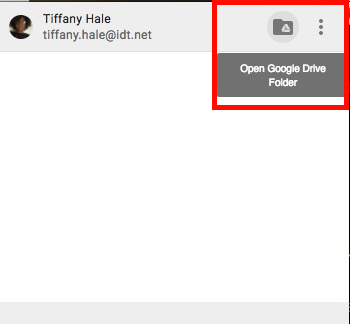
2. Look for this icon at the top of your Mac status bar. Click it to open the Google Drive File Stream interface.

3. Using the interface, open your Google Drive folder. This will use Finder to open your Google Drive folder. It's an exact mirror of your Google Drive folder that's available with a web browser.
4. This will open a Finder window where you can access both your personal Google Drive files and Team Drives. IDT’s design team drive contains everything from resources to projects. Generally, we’ve been placing projects into their respective folders. Example: For design work that affects the retailer portal, we place it in the “Retailer Portal” folder.
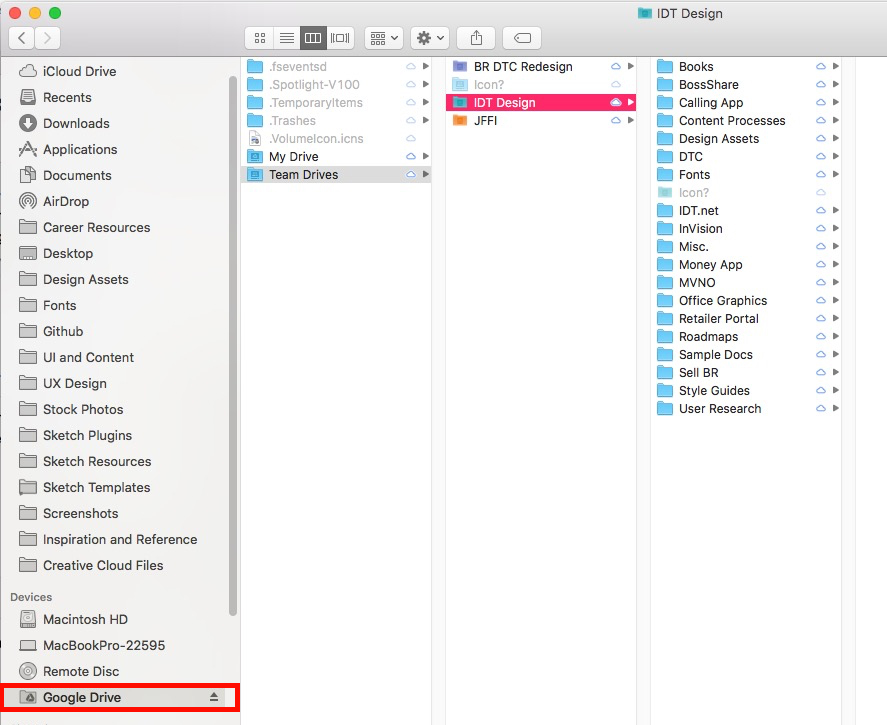 5. You're now ready to work collaboratively! Create a subfolder for your work. This is where all the project files will live. For example I usually create a folder for Existing Page Screenshots, User Flows, Wireframes, Mockups, Images, etc. This makes it easy for anyone looking at my work to find exactly what assets are used across the entire project.
6. As you work, save your files directly in the folder you created. Open them directly from that same folder. Drive File Stream will automatically upload your changes to the drive as you make them. This means your files will always be updated to the latest version. By storing the files in the Google Drive folder, it also means the files are always ready to share with the team.
Files and Naming and Shares. Oh, my!
File structure and a legible nomenclature are important to working collaboratively. Until we have a specific standard, please keep the following tips in mind to help your teammates understand your work!
- Organize before you work. Create subfolders before you begin working, that way you never have to scramble to organize and/or re-link assets. Add subfolders as needed. For example, if you planned on using images and simple text, but we have mandatory legal disclosures to add, save the legal disclosures in a subfolder named "Copy". It makes it that much easier for you (or someone else) to edit or make changes later.
Use numbers to order files. We’ve all encountered a project with file names like mockup-final-1.psd...mockup-final-2-a...mockup-final-final-REALLY-final.psd. It’s utterly impossible to understand which one is the latest without a very good guess. If you use numbers (or alpha characters like a, b, c, etc.) to designate order, there’s no guesswork. It’s very clear that mockup-5.psd comes after mockup-3.psd.
Don't be afraid to write a README. There's a good reason developers use README files! It's very helpful to provide overview or context to a project before you ask someone to dive into all the files. Even if you don't do it every time, it might be helpful before you leave for vacation or after finishing a project that's a small part of a larger effort.
Good designers copy. Great designers steal. Steal work from your teammates! Effortlessly sharing not only work but files is easy with this workflow. To grab assets, images, and patterns from a document, follow these steps.
- DO NOT open the file from drive stream. Copy and paste the file to your desktop.
- Open the file, and paste or drag the patterns you'd like to use into your document. Save your document.
- Exit the file you're copying from, and delete the desktop copy. This ensures you're simply borrowing patterns, and not constantly referencing an old file.
- Communication above all else. The best collaboration tool isn't a program–it's your brain. We are more powerful together than we ever are alone. Reach out, every day, to your team members. Share your work and prototypes. Know that your hard work advances our team just as much as it advances your individual effort.
More About Collaboration with Sketch Libraries
If your preferred program is Sketch, there's an opportunity to work from a single source of truth using Sketch libraries. A library is a file that's available for all other Sketch files to reference. You can use the symbols in your library over and over again as you design. When you change a symbol in the library, it changes every instance outside the library, too!
Sketch libraries should definitely be one of the many ways our team relies on a single source of truth to design for our various platforms.